GitReplica documentation
How to connect sources, create bindings, schedule and trigger syncs, and read the sync log. Two products are covered together — the hosted web app and the self-hosted app you run yourself — and where they behave differently the difference is marked.
Overview
GitReplica keeps Git repositories mirrored between hosts — GitHub, GitLab, Bitbucket, and self-hosted Git — and to object storage such as S3-compatible buckets and Azure Blob. A sync runs on demand, on a schedule, or when the source receives a push.
The documentation covers two products that share the same core concepts but differ in how you run and secure them. GitReplica (Web) is the hosted service: you sign in with a Git provider, and GitReplica stores your connections and runs syncs on its own infrastructure. GitReplica Self-Hosted is a single-user application you run yourself with Docker or npm, on your own machine or server, with all data kept local.
Everything below applies to both products. Where the two behave differently, the difference is called out with a Web or Self-Hosted marker.
| Web (SaaS) | Self-Hosted | |
|---|---|---|
| Sign-in | OAuth (GitHub / GitLab / Bitbucket) | None — single user, local |
| Connect Git via | OAuth or Custom Git (token / SSH) | Personal access token / app password, or Custom Git |
| Destinations | Another Git remote, S3-compatible, Azure Blob | Git remote, S3-compatible, Azure Blob, NAS / filesystem |
| Triggers | Manual, schedule, webhook | Manual, schedule, webhook, CLI |
| Credentials stored | Encrypted at rest on our servers | In a local file on your machine |
| Best for | No operations to run | Full control, LAN or air-gapped, no cloud |
Quick start — Web
Four steps take you from signing in to a verified sync.
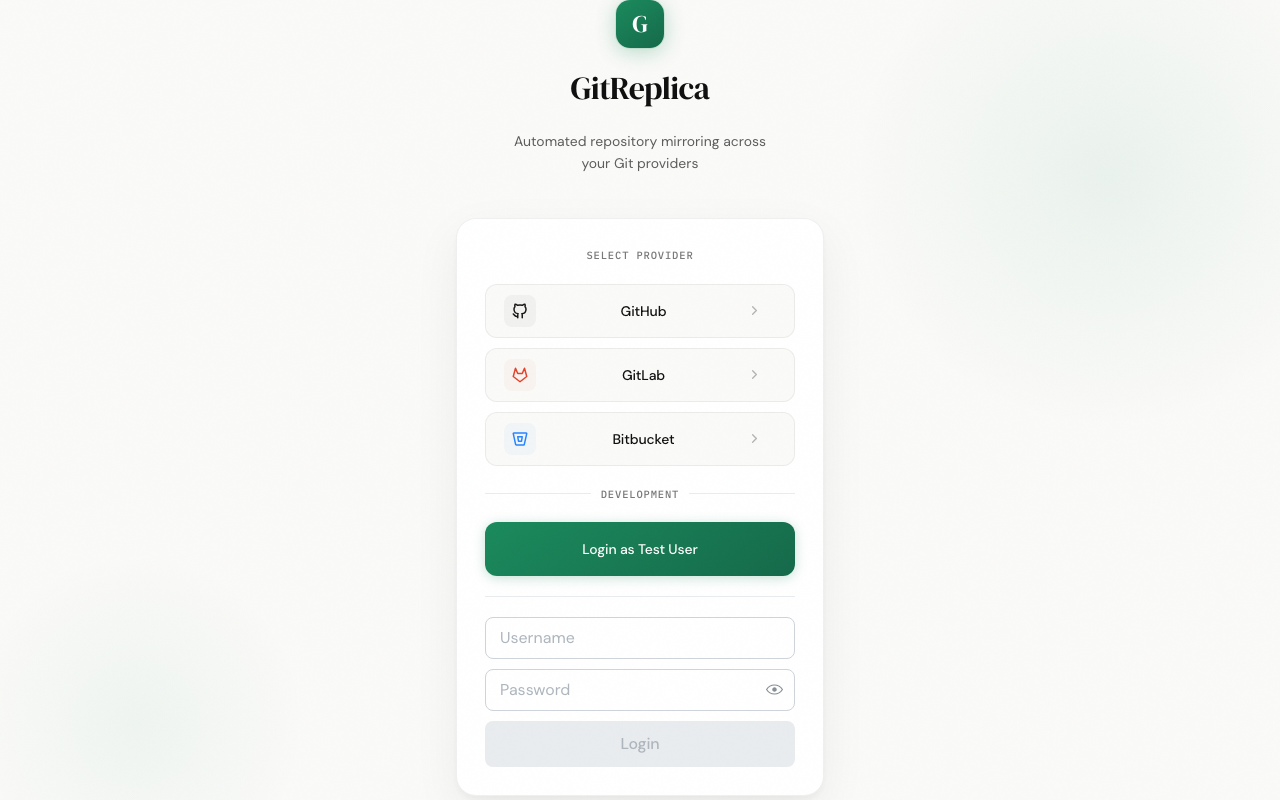
- Sign in. Open the app and choose GitHub, GitLab, or Bitbucket. Authentication is OAuth only — there is no password to set.
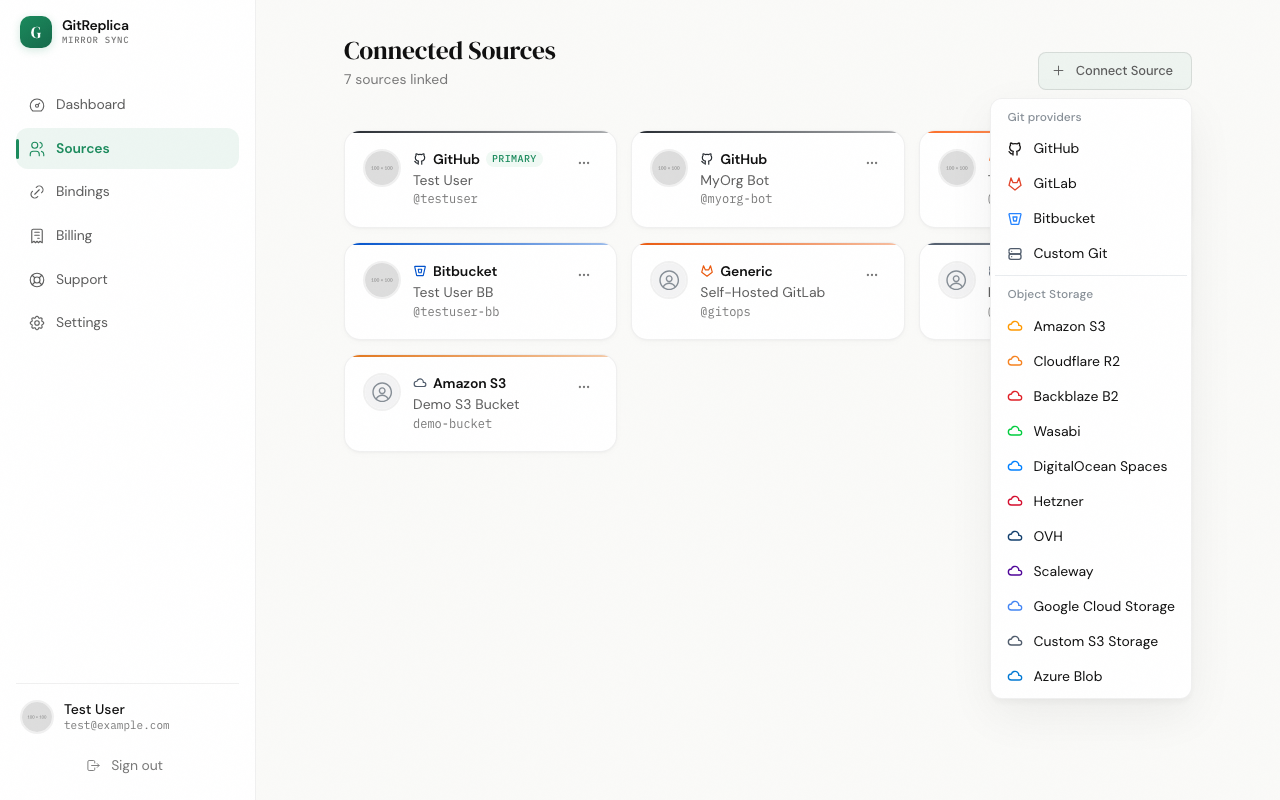
- Connect a source. Go to Sources → Connect Source and pick a provider, or one of the Custom Git and Object Storage options.
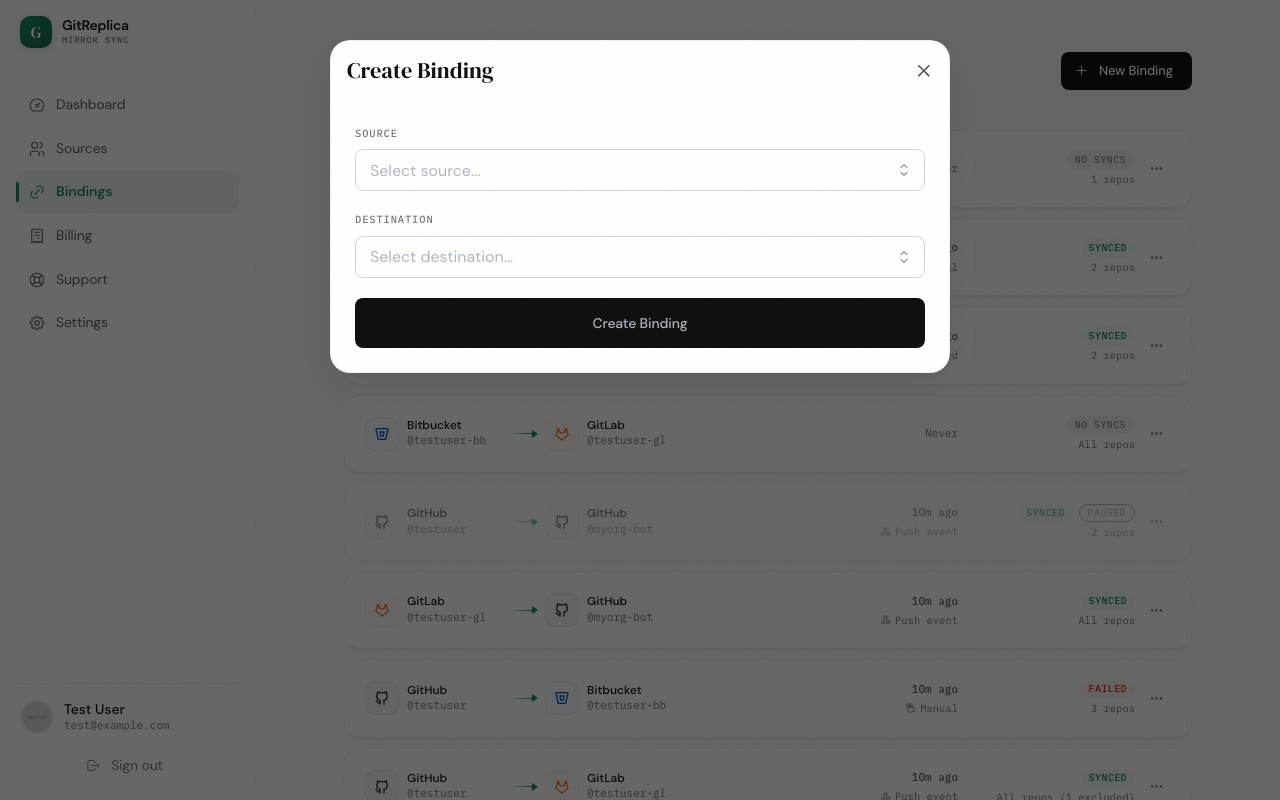
- Create a binding. Go to Bindings → New Binding, choose the source repositories and the destination, and optionally set a schedule.
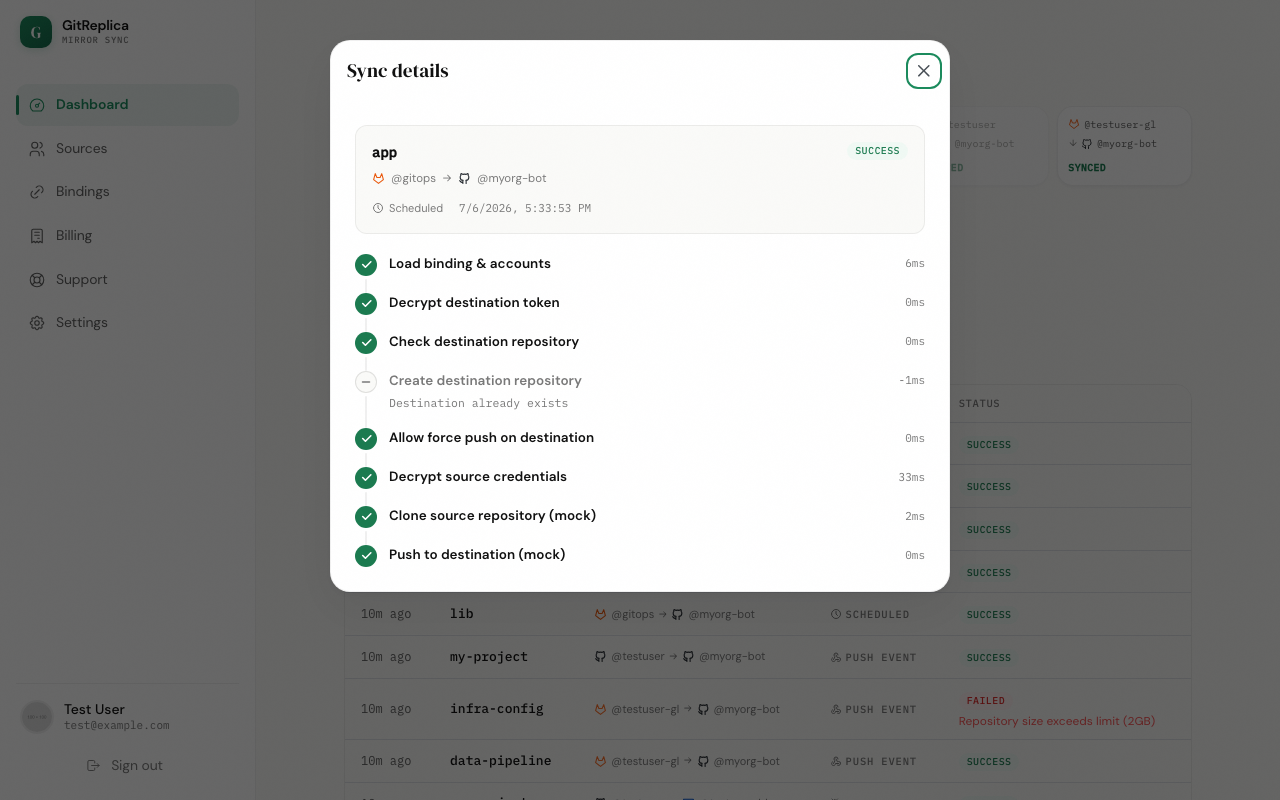
- Run and verify. Trigger a sync from the binding card, or wait for the schedule or a push, then open the run on the Dashboard to read each step.
Quick start — Self-Hosted
The self-hosted app runs as a single container (or a global npm package) and serves its UI on localhost.
Start it with Docker:
docker compose up -d # serves http://127.0.0.1:8080 (localhost only)Or install and run it as a global npm package:
npm install -g gitreplica-selfhosted
gitreplica start          # http://127.0.0.1:8080
Open the UI at http://127.0.0.1:8080 and go to Sources. Add a source — a Git provider (token), Custom Git, Object Storage, or NAS — then create a binding under Bindings → New Binding and sync it from the UI or the CLI:
gitreplica sync <binding-name> # or: gitreplica sync all


Connecting sources
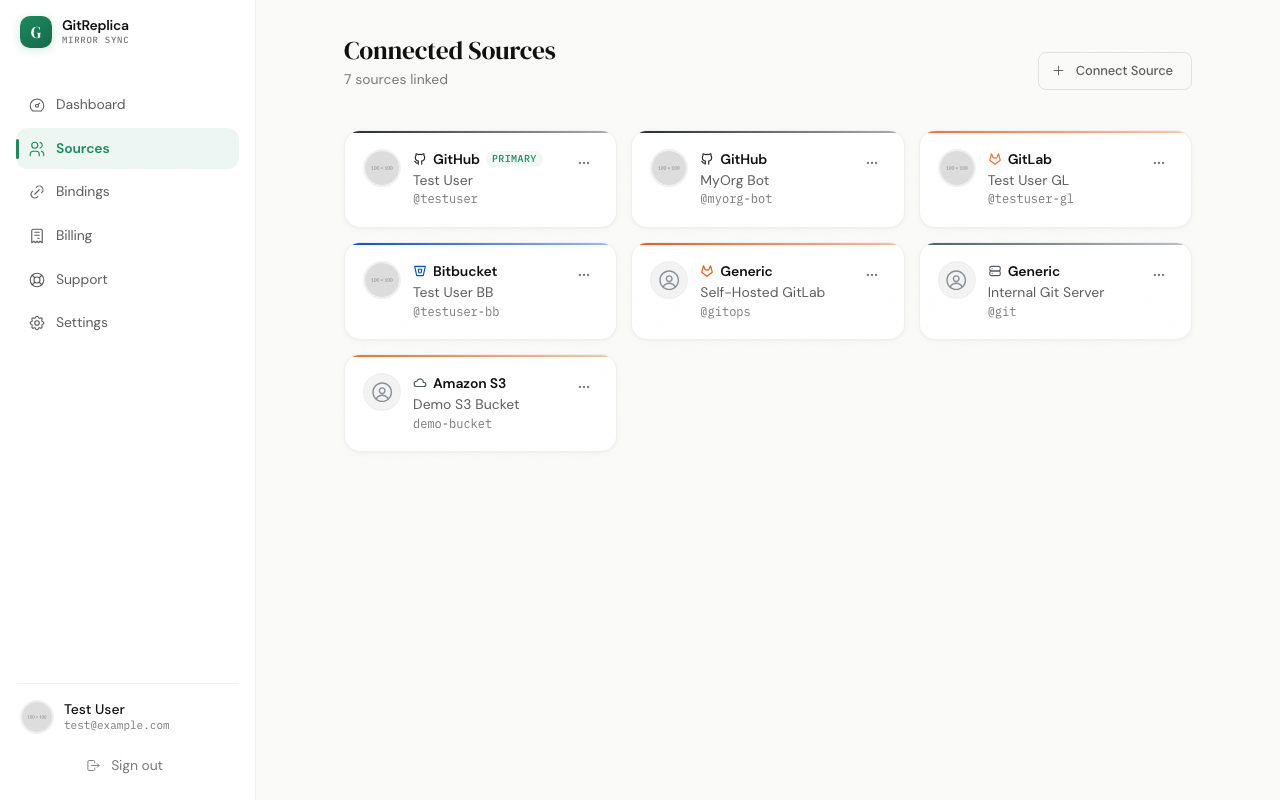
A source is where repositories are read from. For object storage and NAS the same connection is used as a place backups are written to, so those types act only as destinations. You add sources on the Sources page; click Connect Source to open the menu of source types.
Web Web
Git providers (OAuth). GitHub, GitLab, and Bitbucket connect with a single click. GitReplica sends you through the provider's OAuth flow and stores the resulting access token, encrypted at rest, so there is no token to paste. You can connect several accounts, including more than one of the same provider — for example a personal GitHub account and an organization GitHub account.
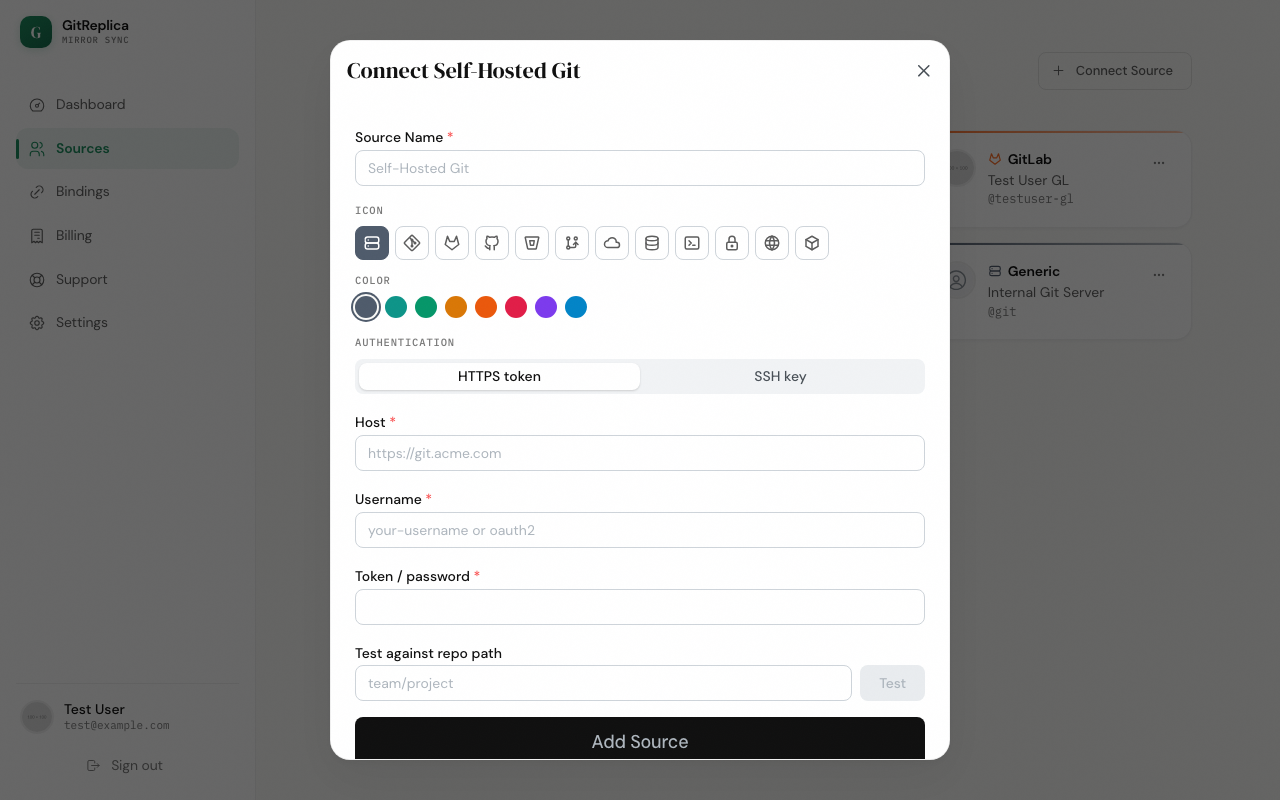
Custom Git. For any other git server — a self-hosted GitLab, Gitea, or a bare SSH remote — choose Custom Git and pick an authentication method:
- HTTPS token — enter the host (for example
https://git.acme.com), a username (oroauth2), and a token or password. - SSH key — enter the host (for example
[email protected]) and paste an SSH private key. The key must be unencrypted; passphrase-protected keys are not yet unlocked.
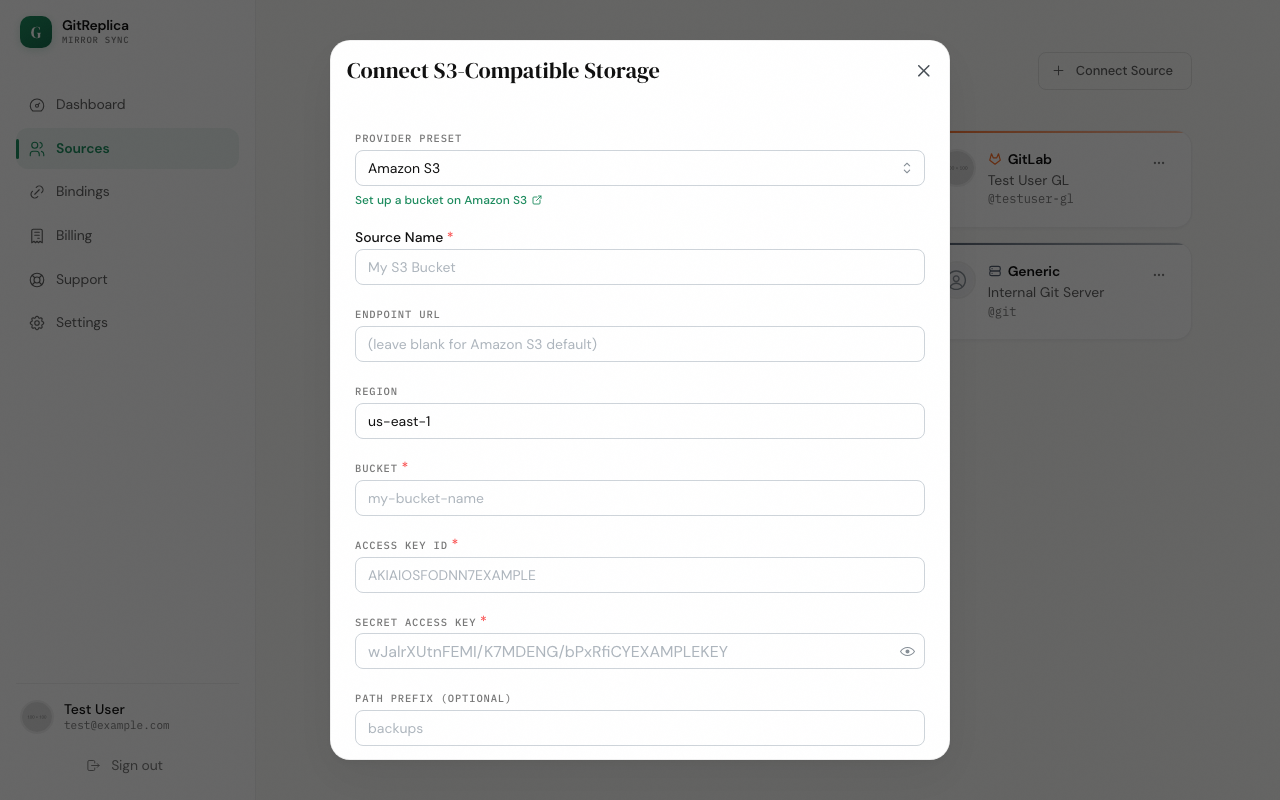
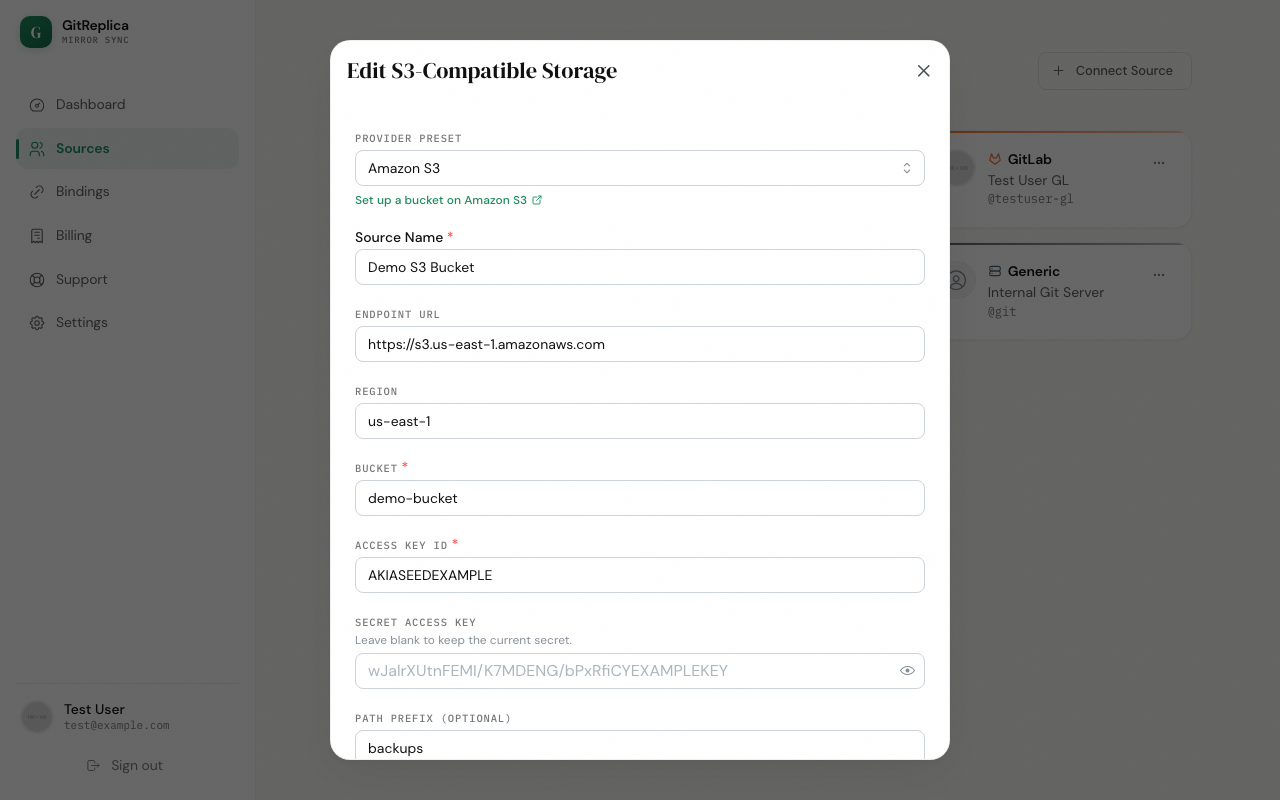
Object Storage (S3-compatible). Pick a preset to prefill the endpoint and region template. The presets are Amazon S3, Cloudflare R2, Backblaze B2, Wasabi, DigitalOcean Spaces, Hetzner, OVH, Scaleway, Google Cloud Storage (through HMAC keys), and Custom S3 Storage for anything else that speaks the S3 API. Fill in the Endpoint, Region, Bucket, Access Key ID, and Secret Access Key, plus an optional Path prefix.
The endpoint must not contain the bucket. GitReplica uses path-style addressing, so the bucket name is appended to the endpoint automatically. If you leave the bucket in the endpoint — a Cloudflare R2 trailing path, or a DigitalOcean Spaces subdomain — it is duplicated in every object key. The form warns you when the endpoint looks like it already contains the bucket; it does not rewrite your input. Enter the plain service endpoint and set the bucket in its own field.
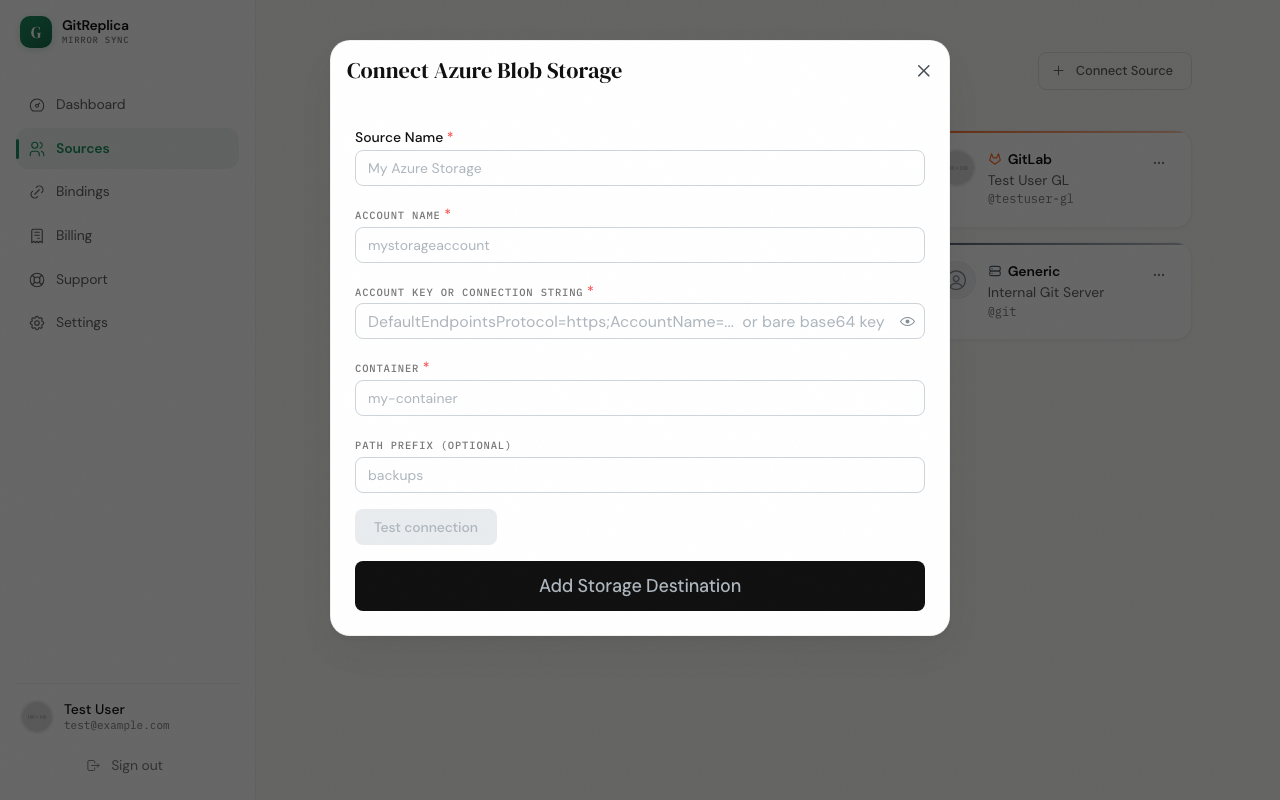
Azure Blob. Choose Azure Blob and provide the account and container details with an account key, or a connection string.
Editing a source. Open the ⋯ menu on a source card and choose Edit. Only Custom Git and Object Storage (S3 and Azure) sources can be edited; OAuth git sources cannot be edited — reconnect them instead. When editing, leave the secret field blank to keep the stored credential, or type a new one to replace it.
Self-Hosted Self-Hosted
Open the app at http://127.0.0.1:8080, go to Sources, and click Connect Source.

Git providers (token, no OAuth). GitHub, GitLab, and Bitbucket each connect with a personal access token; Bitbucket uses an app password. There is no OAuth in the self-hosted app. Suggested scopes are repo for GitHub, read_repository and write_repository (or api) for GitLab, and an app password with repository read and write for Bitbucket. For a self-hosted GitLab or Bitbucket Server, set the instance host when adding the token.
Custom Git. The same as the web app — a host URL plus either an HTTPS token and username, or an unencrypted SSH private key.

Object Storage (S3 and Azure). The same S3-compatible preset list is offered, along with Azure Blob. The same bucket-free-endpoint warning applies.

NAS / filesystem. The self-hosted app adds a NAS destination with three transports:
- Local path — a directory mounted on the host, for example a NAS share bind-mounted into the container.
- SFTP — host, port, username, and a password or SSH key, plus a remote path.
- rsync — a local or remote rsync target. The
rsyncbinary must be present.

Editing a source. Self-hosted sources of type Custom Git, S3, Azure, and NAS are editable from the Edit action on their card; git-provider (token) sources are not editable through the edit modal. As on the web, a blank secret preserves the stored one.
Creating & managing bindings
A binding pairs one source with one destination and defines which repositories to mirror and how. Create one from Bindings → New Binding; existing bindings appear as cards you can sync or edit.
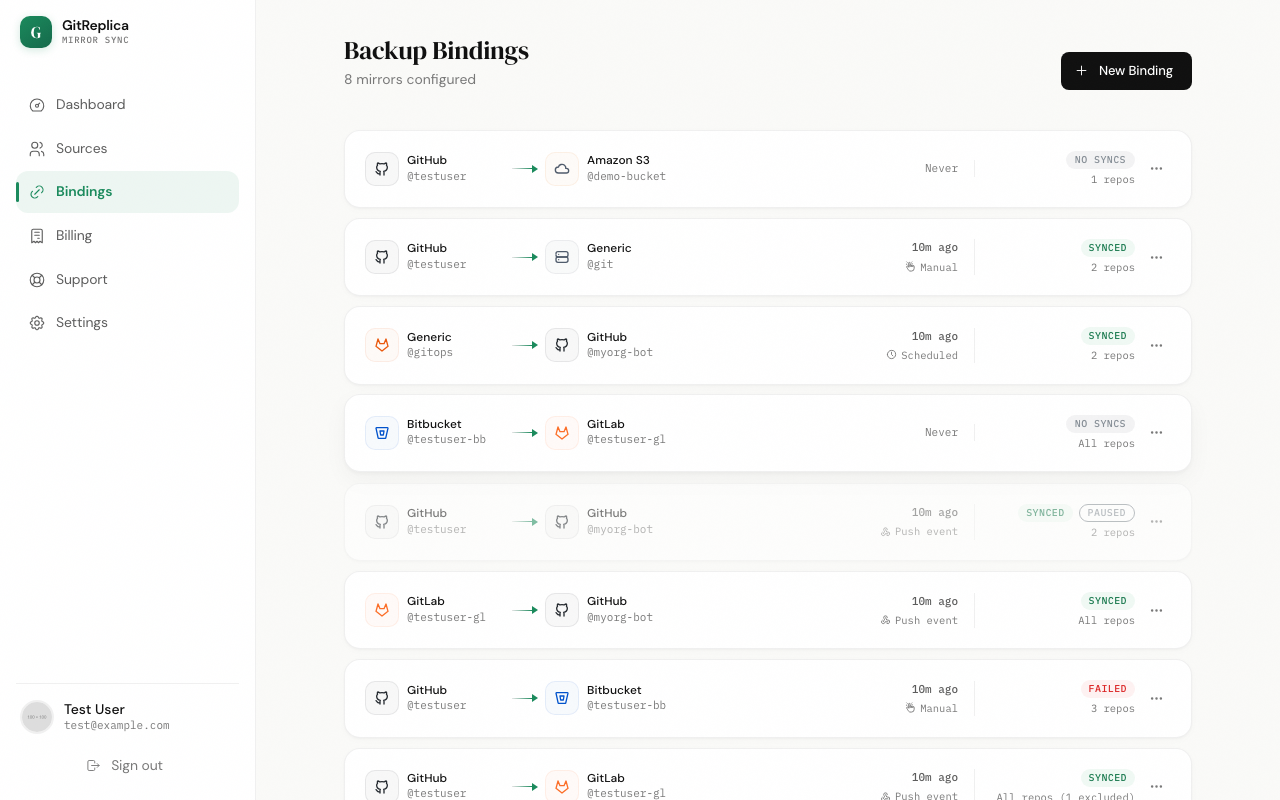
Creating a binding takes three steps:
- Pick the source and the repositories to mirror. Repositories are selected explicitly; where the source supports listing you can also exclude specific ones. For a Custom Git source you type the repository paths directly, because Custom Git does no listing.
- Pick the destination — another Git remote, object storage (S3 or Azure), or, in the self-hosted app, NAS.
- Set the options below, optionally add a schedule, and save.
The destination determines what a sync produces:
- Git remote — the source repository is mirror-pushed to the destination git remote.
- Object storage — each repository is packaged as a timestamped zip, keyed
<prefix>/<owner>/<repo>/<repo>-<UTC>.zip, and uploaded on every sync. - NAS Self-Hosted — choose the artifact: a live mirror (a bare
.gitdirectory kept up to date in place) or a zip snapshot (a timestamped zip per sync).
Two options control how the sync behaves:
- Force push vs additive. With force push on — the default for mirrors — the destination is made to match the source exactly: branches and tags removed on the source are removed on the destination, and rewritten history overwrites the destination. With it off (additive), a push never deletes; a rewritten branch is skipped rather than overwriting the destination.
- Keep last N. For storage and NAS-zip destinations you can set a retention count — for example the last 5, 10, 30, or 90 zips — and older zips are pruned after each sync. Leave it empty to keep every backup. Git-remote destinations are not pruned.
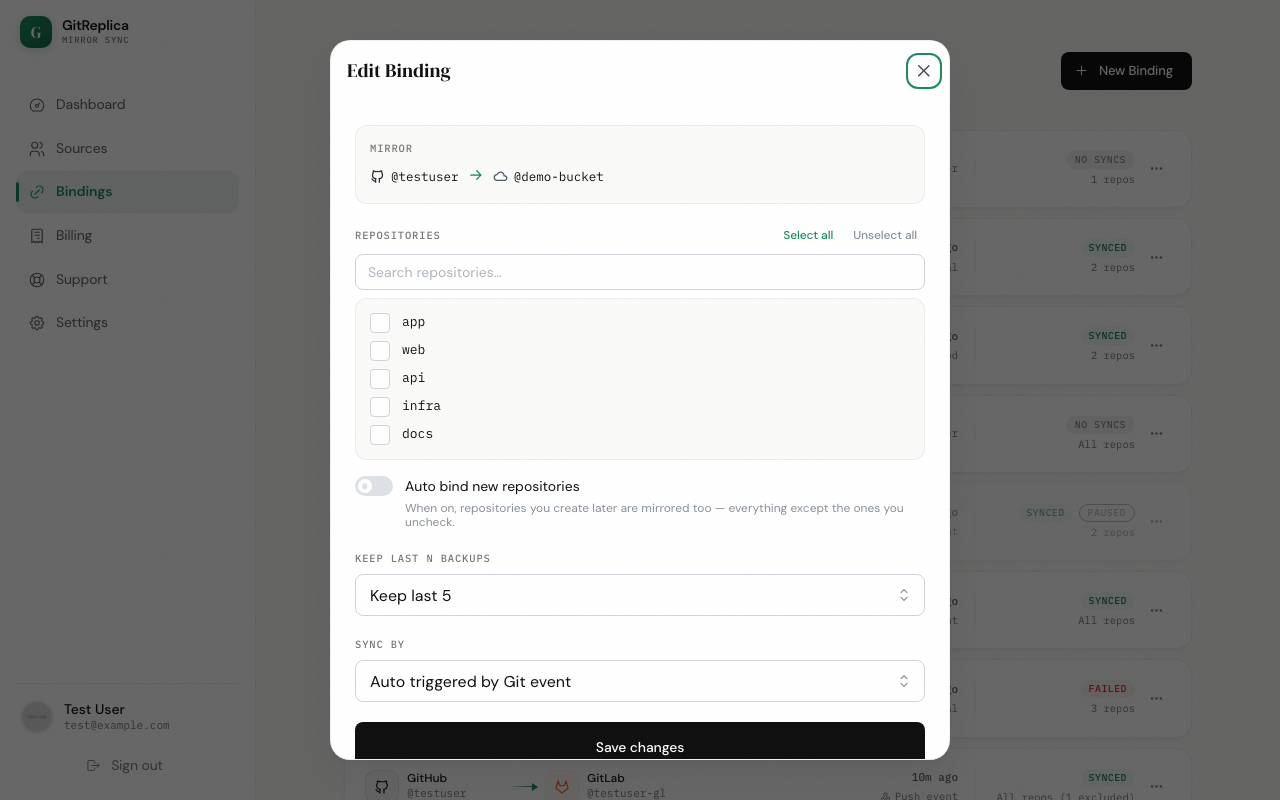
The self-hosted bindings page works the same way — one card per binding, with Sync, Edit, and run history.

Triggers & scheduling
A binding can sync four ways: on demand, on a schedule, on a git push, and — in the self-hosted app — from the CLI.
Manual
Trigger a sync at any time from the binding card with Sync now, or, in the self-hosted app, from the CLI:
gitreplica sync <binding-name> # or: gitreplica sync allSchedule
Web The binding modal's Sync by picker offers Hourly, Daily, and Weekly. Leaving it at Auto triggered by Git event means there is no timer — the binding runs only on a webhook push or a manual sync. The 15-minute and 6-hour intervals remain valid on older bindings but are not offered as new choices.
Self-Hosted The schedule presets are Manual only, Hourly, Daily (3 AM), Weekly (Mon 3 AM), or a custom cron expression. From the CLI:
gitreplica schedule add <name|all> hourly|daily|weekly|"<cron>"Webhooks
A binding can also run when the source receives a git push.
Web Webhooks are registered for supported providers automatically.
Self-Hosted Webhooks are off until you set a public URL. Set the PUBLIC_URL environment variable to a URL your provider can reach; only then can GitHub, GitLab, or Bitbucket call back and trigger a sync.
Watching syncs & the sync log
The Dashboard shows recent activity — the latest sync runs across your bindings — plus a status card per binding. Click a run to open its sync log.
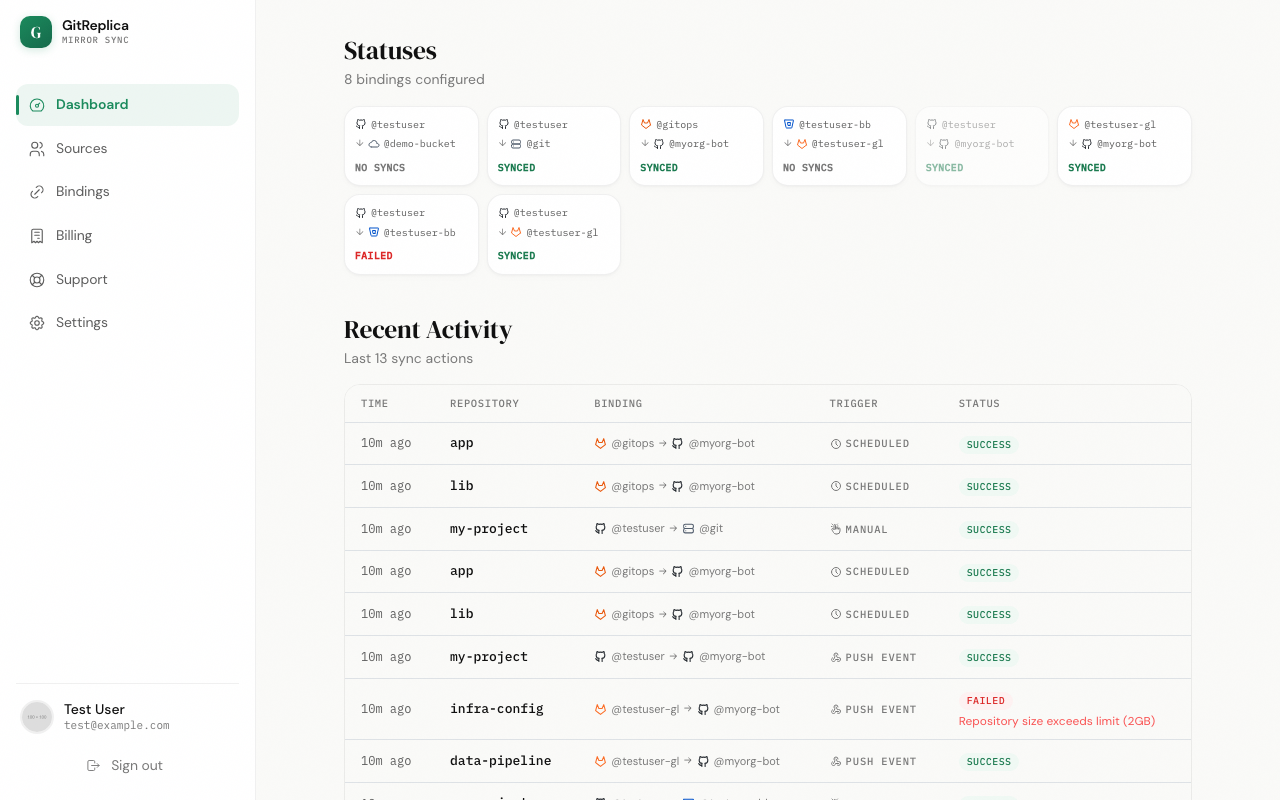
The log shows the run's status — success, failed, or running — and a per-step timeline. A typical run clones the source, then pushes to a git remote or uploads to storage, and prunes old backups where retention applies.
- A failed run shows the error inline. Error text is redacted: tokens, signatures, and credentials are stripped from any URL or message before it is stored or displayed.
- If a repository uses Git LFS, the run shows a warning — only the small LFS pointer files are mirrored, and the large-file content is not replicated. On the web app, whether LFS content is replicated at all is governed by the Replicate LFS setting described under Settings.
The self-hosted sync log reads the same way — click a binding's run to see its steps, status, and any warnings. It polls while a run is still in progress.

Settings & configuration
Web — Settings page Web
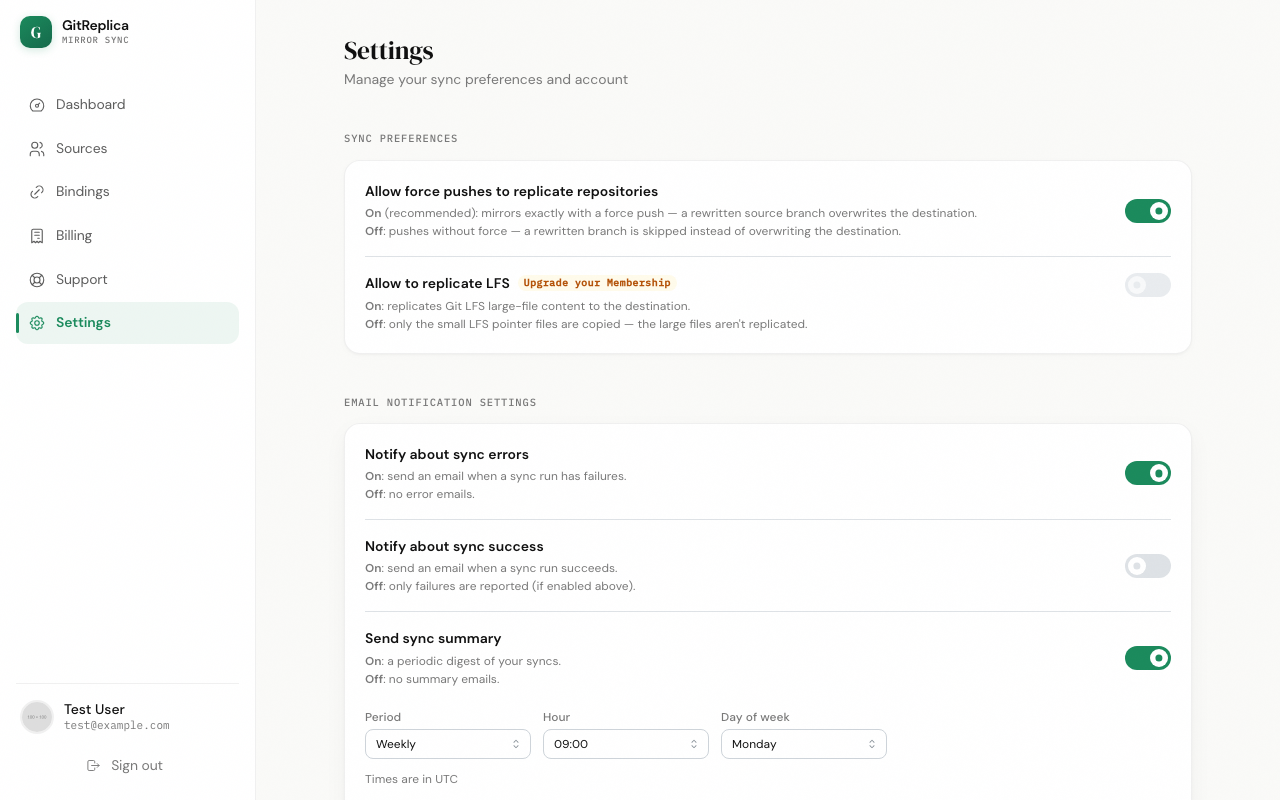
- Allow force pushes to replicate repositories. On (recommended) mirrors exactly — a rewritten source branch overwrites the destination. Off pushes without force, so a rewritten branch is skipped instead of overwriting.
- Allow to replicate LFS. On replicates Git LFS large-file content to the destination. Off copies only the small LFS pointer files, and the large files are not replicated.
- Email Notification Settings — four toggles plus a schedule:
- Notify about sync errors — on by default.
- Notify about sync success — off by default.
- Send sync summary — a periodic digest; choose daily, weekly, or monthly and the time, in your browser's timezone.
- Notify about product updates — on by default.
- Danger Zone → Delete account. Permanently removes your GitReplica account and all data. This cannot be undone.
Self-Hosted — environment variables Self-Hosted
The self-hosted app has no email or notification system and no settings page. It is configured entirely through environment variables:
| Variable | Default | What it does |
|---|---|---|
PORT | 8080 | Port the server listens on. |
BIND_HOST | 0.0.0.0 (gitreplica start defaults it to 127.0.0.1) | Address the server binds to. |
DATA_DIR | ~/.gitreplica (bare Node), /data (Docker) | Where the SQLite database, temporary clones, and local mirrors live. |
PUBLIC_URL | unset | Public URL of this instance; required to enable push webhooks. Leave unset for schedule and manual runs only. |
Billing & support Web
Both are web-only features.
Billing
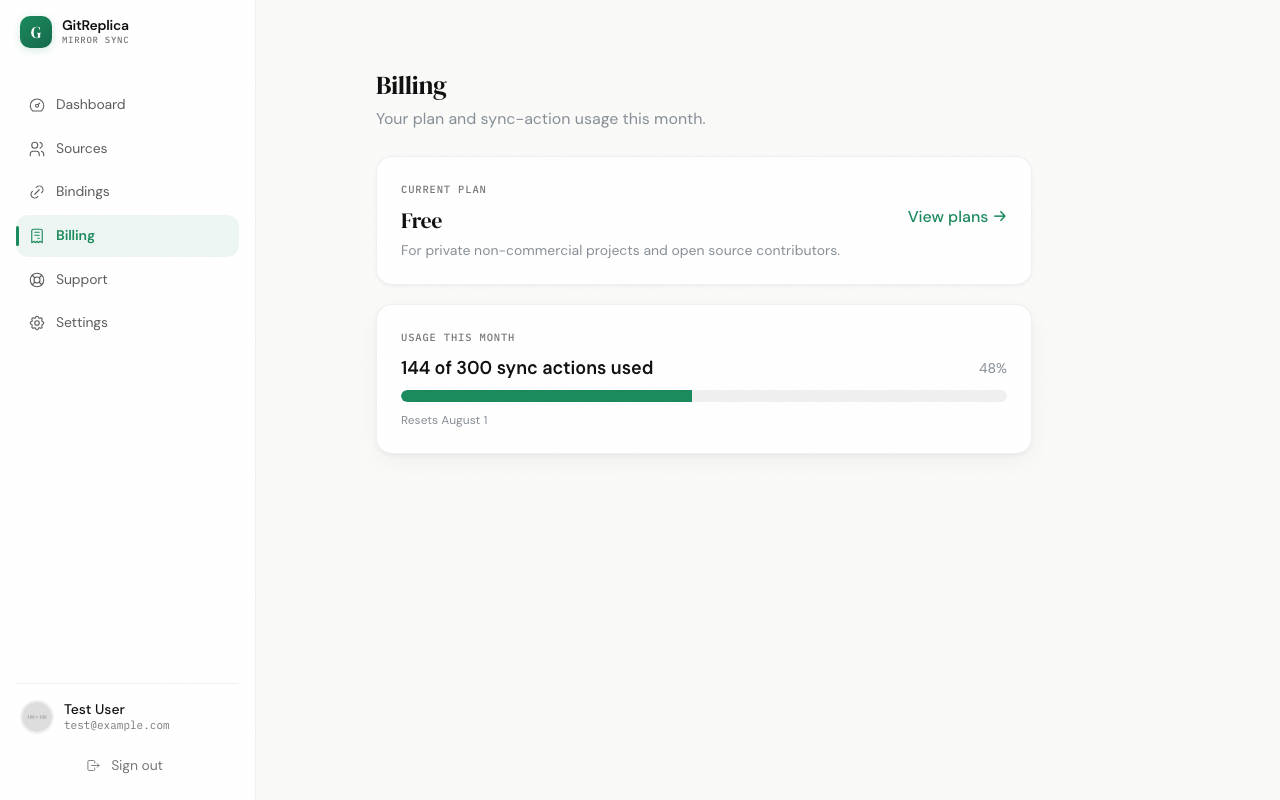
The Billing page shows your current plan and this month's sync-action usage. On a plan with a finite quota you see a progress bar reading {used} of {quota} sync actions used; on an unlimited plan you see {used} sync actions used · Unlimited. A View plans → link opens the plans page. Billing is display-only — usage is counted for information, with no enforcement or quota blocking.
Support
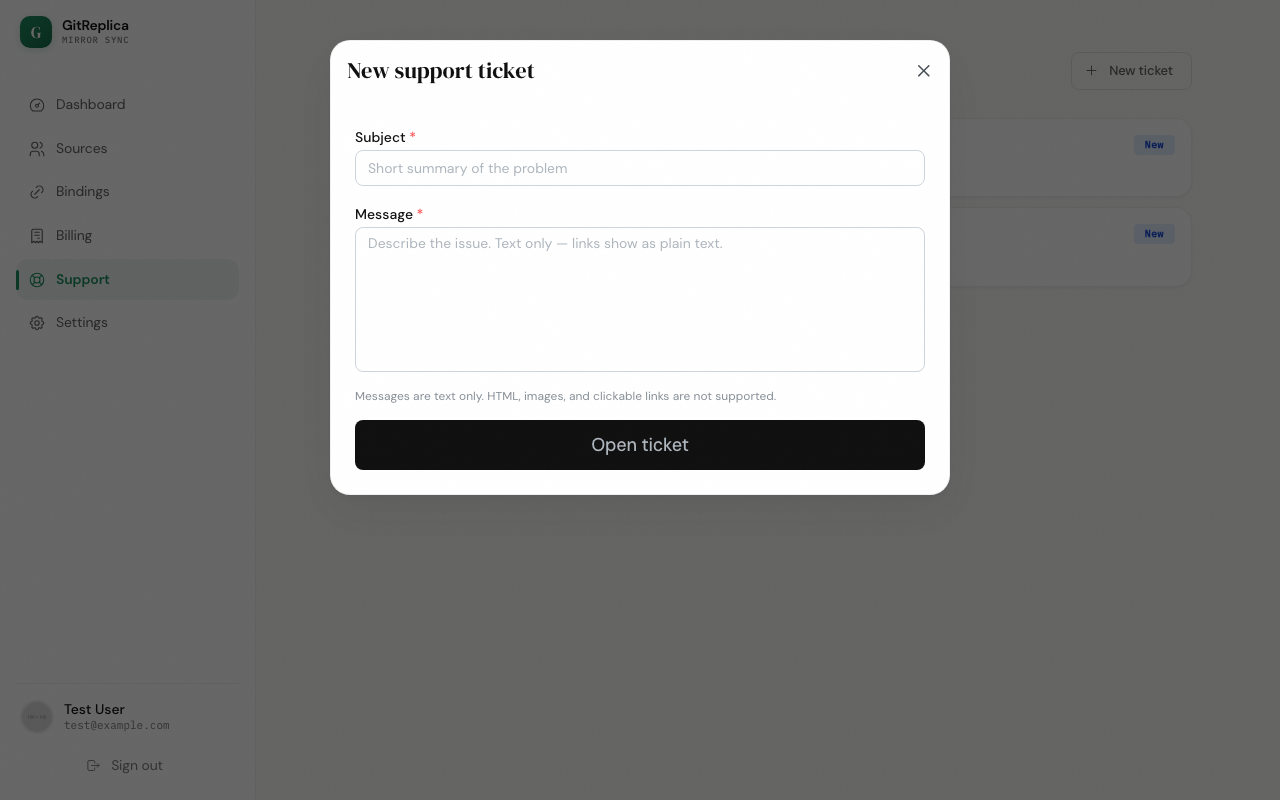
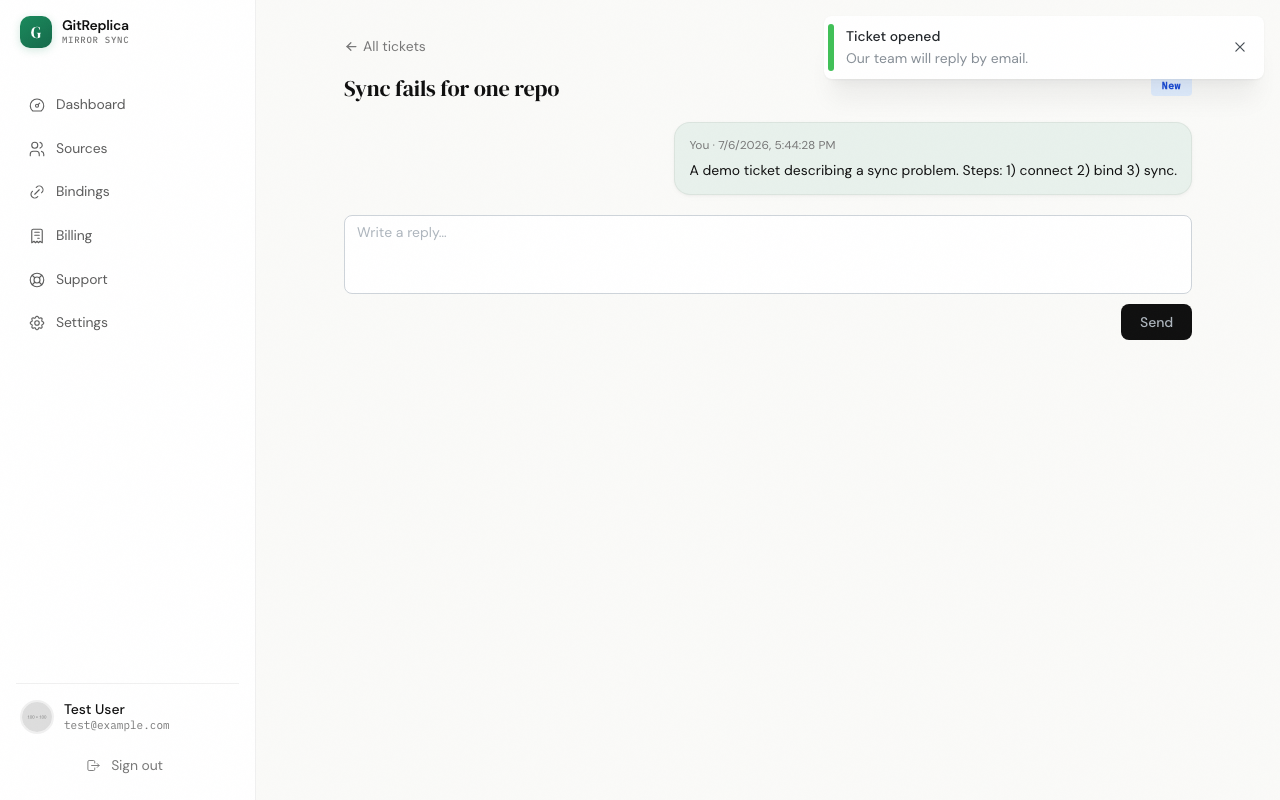
Open the Support page to file text-only tickets; replies arrive by email. Click New ticket, enter a summary and a description, and open it.
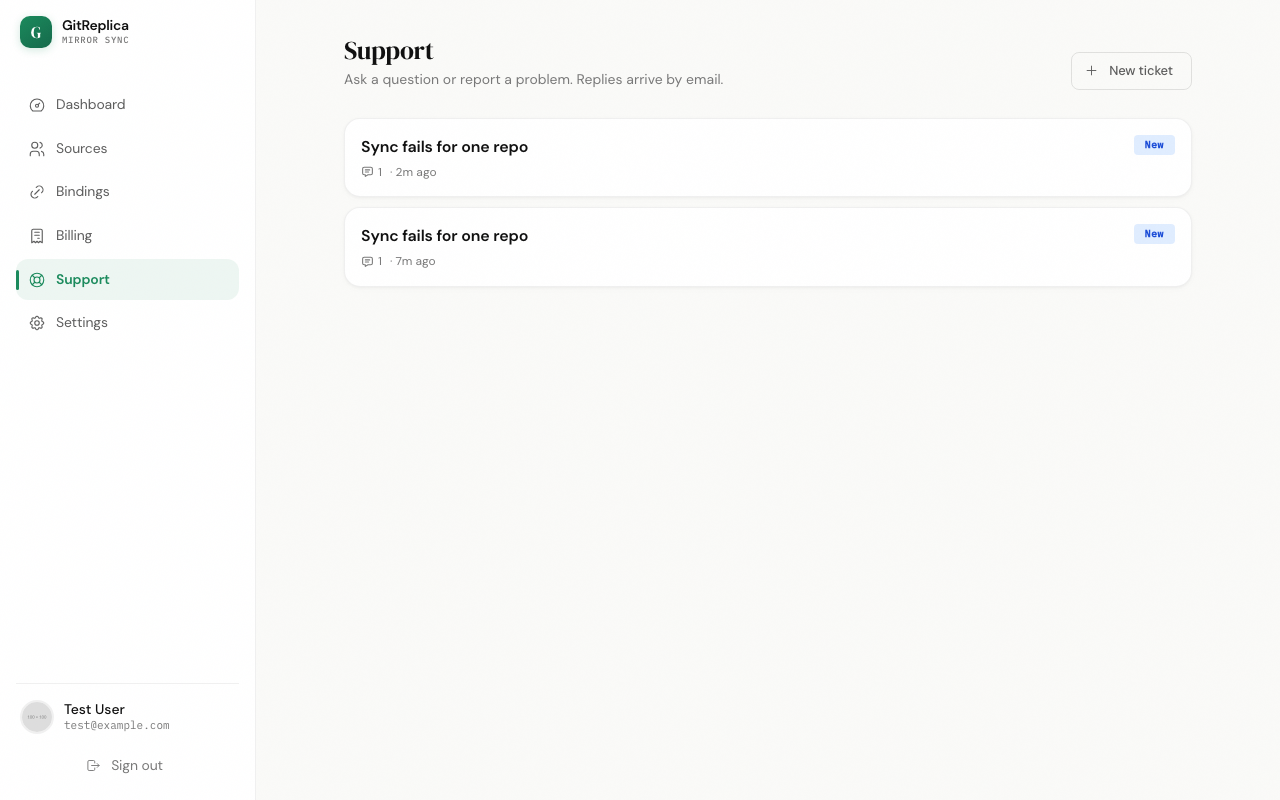
Follow the conversation on the ticket thread. Each ticket has a status — new, in progress, or resolved. You can reply from the thread, and replying to a resolved ticket reopens it.
CLI & operations Self-Hosted
The self-hosted app ships a gitreplica CLI. Run it in the container with docker compose exec gitreplica gitreplica …, or directly when the app is installed as a global npm package.
| Command | Description |
|---|---|
list | List bindings and their latest run status. |
sync <name|all> | Sync a binding by name, or all for every active binding. |
binding add <name> <sourceUrl> <destUrl> | Create a binding between two git remotes. Auth flags: --source-auth/--dest-auth (https|ssh|token|none), --source-user/--dest-user, --source-token/--dest-token, --source-ssh-key/--dest-ssh-key, and --force / --no-force. |
binding remove <name> | Delete a binding by name. |
schedule add <all|name> <hourly|daily|weekly|cron> | Set a schedule for a binding, or all bindings. |
seed | Load sample accounts, bindings, and run history; the database is empty by default. --reset wipes first. |
clear | Delete all data. Requires --yes (irreversible); without it, previews the counts. |
start | Run the server in the foreground (UI, API, and scheduler). |
service <install|uninstall|status> | Manage the per-user autostart service. |
Starting with Docker
docker compose up -d # builds/starts; serves http://127.0.0.1:8080 (localhost only)Checking status
$ gitreplica list
  github-to-nas [0 3 * * *]  —  success
  gitlab-mirror [0 * * * *]  —  running
  archive-to-s3  —  success
  legacy-backup [inactive]  —  no runs
Each line shows the binding name, its schedule cron in brackets (or nothing for a webhook or manual-only binding), an [inactive] marker when disabled, and a rolled-up status across its repositories: success, failed, running, or no runs.
Autostart
gitreplica service install registers a per-user autostart at login — a systemd --user unit on Linux, a launchd LaunchAgent on macOS, or a logon Scheduled Task on Windows, none of which need sudo or admin rights. It runs at login, not at boot. service uninstall removes it and service status reports it. Docker users do not need this; the compose file's restart: unless-stopped provides autostart.
Data & backups
All state lives in DATA_DIR — ~/.gitreplica for a bare-Node install, /data in Docker — as a single SQLite database in WAL mode. To back up or move an instance, copy the whole DATA_DIR. Stop the app first, or if you copy it while running, copy the .db file together with its -wal and -shm sidecar files so you do not miss recent writes.
Feature reference
This section explains the core concepts in more depth. It applies to both products unless a heading marks something for a single one.
Sources & providers
A source is a connection to a place repositories are read from, or — for object storage and NAS — a place backups are written to. The supported kinds differ in what they require:
- Git provider via OAuth Web — GitHub, GitLab, and Bitbucket connect in one click through the provider's OAuth flow. There is no token to paste; GitReplica stores the access token it receives. You can connect several accounts, including more than one of the same provider.
- Git provider via token Self-Hosted — the self-hosted app has no OAuth. GitHub and GitLab connect with a personal access token; Bitbucket connects with an app password. For a self-hosted GitLab or Bitbucket Server instance, set the host when adding the token.
- Custom Git — any other git server. You provide a host URL and either an HTTPS token and username, or an unencrypted SSH private key (passphrase-protected keys are not yet unlocked). Custom Git does no repository listing, so you type the repository paths yourself, and a Custom Git destination must already exist on the server.
- Object Storage — an S3-compatible bucket or an Azure Blob container, used only as a destination. You supply the endpoint, region, bucket or container, and a key; Azure also accepts a connection string.
- NAS / filesystem Self-Hosted — a local directory, an SFTP target, or an rsync target, used only as a destination.
Bindings & sync modes
A binding pairs exactly one source with exactly one destination and defines what to mirror. Bindings run in selected-repo mode: you pick the repositories explicitly. For providers that support listing you tick the repositories you want, and where offered you can additionally exclude specific ones; for a Custom Git source you type the repository paths directly. A binding always flows one way, from source to destination.
Destinations
A binding's destination is one of:
- Git remote — the source repository is mirror-pushed to another git remote (see Sync engine).
- Object storage (S3-compatible) — the supported presets are Amazon S3, Cloudflare R2, Backblaze B2, Wasabi, DigitalOcean Spaces, Hetzner, OVH, Scaleway, Google Cloud Storage (through HMAC keys), and Custom S3 Storage for anything else that speaks the S3 API.
- Azure Blob — an Azure storage account and container, authenticated with an account key or a connection string.
- NAS / filesystem Self-Hosted — one of three transports: a local path (a mounted directory), SFTP (host, port, and user with a password or SSH key), or rsync (a local or remote rsync target; the
rsyncbinary must be present).
Git-remote destinations receive a live mirror. Object-storage and NAS-zip destinations store a timestamped zip per repository per sync, keyed <prefix>/<owner>/<repo>/<repo>-<UTC>.zip; a NAS destination can instead keep a live bare mirror in place.
Sync engine
For a git-remote destination, GitReplica performs a mirror push:
- Force push vs additive. With force push on — the default for mirrors — the destination is made to match the source exactly; branches and tags deleted on the source are removed on the destination, and rewritten history overwrites the destination. With it off (additive), refs are updated additively and a rewritten branch is skipped rather than overwriting the destination.
- Hidden refs are stripped. Provider-internal pull and merge-request refs —
refs/pull/*,refs/merge-requests/*, andrefs/pull-requests/*— are removed before pushing, so they are not carried to the destination. - Git LFS is pointer-only. If a repository uses Git LFS, the sync copies only the small LFS pointer files; the large-file content is not replicated, and the run records a warning. On the web app, whether LFS content is replicated at all is additionally governed by the Replicate LFS setting.
Retention & archiving
For object-storage and NAS-zip destinations you can set keep last N: after each sync, GitReplica keeps the newest N zips for that repository and prunes the older ones. Leave it empty to keep every backup. Git-remote destinations are never pruned — a mirror push updates the destination in place, so nothing accumulates. Live bare-mirror artifacts on NAS are likewise not pruned; only zips are.
Security model
Web OAuth tokens and connection credentials are AES-256-GCM encrypted at rest on the servers — the S3 and Azure secrets, generic-remote tokens and keys, and OAuth tokens all use the same encryption. The application is served under the /app path, and your session is a JWT held in an HTTP-only cookie, so it is not exposed to page JavaScript. Storage and remote secrets never leave the server and are excluded from every API response.
Self-Hosted The self-hosted app is single-user with no authentication, and it binds to 127.0.0.1 by default — the Docker compose file publishes the port on 127.0.0.1:8080 only, and gitreplica start binds 127.0.0.1. Credentials are stored in plaintext in the local SQLite database inside DATA_DIR; this is by design — the data/ directory is gitignored and security relies on your host's filesystem rather than on encryption. Because there is no login, anyone who can reach the port has full control, so do not expose the port to a network or the internet without your own protection in front of it: a reverse proxy with authentication, a firewall, or a tunnel you control.
Email notifications Web
The web app sends transactional email through Resend and offers four notification categories on the Settings page, plus a summary schedule: notify about sync errors (on by default), notify about sync success (off by default), send sync summary (a periodic digest — daily, weekly, or monthly, in your browser's timezone), and notify about product updates (on by default). Every notification email includes an unsubscribe link, so you can opt out of a category without signing in. The self-hosted app has no email or notification system.
Browser extension Web
A small read-only browser toolbar extension shows your bindings and their recent sync status at a glance. It reads through a dedicated read-only API and cannot change anything in your account.
Environment variables Self-Hosted
The self-hosted app is configured entirely through the environment variables listed under Settings & configuration: PORT, BIND_HOST, DATA_DIR, and PUBLIC_URL.
FAQ
Which should I use — Web or Self-Hosted? Both
Use Web for convenience: you sign in with your git provider, GitReplica stores your connections (encrypted) and runs syncs for you, and you get email notifications, billing, support, and the browser extension. Use Self-Hosted for full control: it runs on your own machine or server, keeps all data local, works on a LAN or air-gapped network, adds a NAS/filesystem destination and a CLI, and never talks to our cloud.
Where are my tokens and credentials stored, and are they safe? Both
Web OAuth tokens and connection secrets are AES-256-GCM encrypted at rest on our servers and are excluded from every API response. Self-Hosted Credentials are stored in plaintext in the local SQLite database under DATA_DIR, by design — the data/ directory is gitignored and security relies on your host filesystem. Because the self-hosted app has no authentication, keep the port private (it binds to 127.0.0.1 by default) and do not expose it without your own protection.
Which providers and destinations are supported? Both
Sources: GitHub, GitLab, and Bitbucket — OAuth on Web, personal access token or app password on Self-Hosted — plus Custom Git for any other server. Destinations: another git remote; S3-compatible object storage (Amazon S3, Cloudflare R2, Backblaze B2, Wasabi, DigitalOcean Spaces, Hetzner, OVH, Scaleway, Google Cloud Storage, or Custom S3); Azure Blob; and, on Self-Hosted only, NAS/filesystem (local path, SFTP, or rsync).
Why did my sync fail, and what is the LFS warning? Both
Open the failed run in the sync log — the error is shown inline, with tokens, signatures, and credentials redacted from any URL or message. The LFS warning is not a failure: it means the repository uses Git LFS and only the small LFS pointer files were copied, while the large-file content is not replicated.
How do schedules and webhooks work — do I need a public URL? Both
You can set a schedule at any time (hourly, daily, or weekly, or a custom cron on Self-Hosted) with no public URL needed. Webhooks, which trigger a sync on a git push, need the provider to be able to reach your instance. On Web this is handled for supported providers automatically. On Self-Hosted webhooks are off until you set PUBLIC_URL to a URL your provider can call back to.
Does a sync delete anything on the destination? Both
Only when force push is on: a force push makes the destination match the source, so branches and tags removed on the source are removed on the destination. With force push off (additive), a sync never deletes — it only adds and updates refs. Object-storage and NAS-zip retention (keep last N) prunes old zip backups, but that is separate from the git push.
What do plans and quotas cost? Web
Billing is display-only. The Billing page shows your current plan and this month's sync-action usage — a progress bar for a finite quota, or "Unlimited" — and a View plans → link opens the plans page. Usage is counted for information only; there is no enforcement or quota blocking.
What does the self-hosted app need to run? Self-Hosted
Either Docker (recommended — the image is built on node:20-bookworm-slim and already includes git, openssh-client, and rsync) or Node 20 or newer with the global npm package. For a bare-Node install you need git and openssh-client on the host, plus rsync only if you use the rsync NAS transport.
How do I back up or move my data? Self-Hosted
All state is a single SQLite database in DATA_DIR (~/.gitreplica for bare Node, /data in Docker), running in WAL mode. To back up or migrate, copy the whole DATA_DIR. Stop the app first, or if you copy while it is running, copy the .db file together with its -wal and -shm sidecar files so you do not miss recent writes.
How do I upgrade? Self-Hosted
For Docker, rebuild and restart the image with docker compose up -d --build; for the global package, reinstall it. The database migrates automatically on startup — the app creates any missing tables and applies additive column changes on boot, so there is no manual migration step.
How do I get help? Both
Web Open the Support page and file a text-only ticket; replies arrive by email, and you can follow the thread in the app. Self-Hosted Consult the project's README and its issue tracker.